At a glance
What: Foliograph imports your trades automatically. You add the information that cannot be derived from the executions: strategy, mistakes and your thoughts on the trade.
How: You set up strategies and mistakes once in a catalog and then assign them to one or several trades.
Result: The Analytics page breaks your trades down by strategies and mistakes. From every figure one click takes you to the trades behind it.
Setting up strategies and mistakes
In the journal, the Strategies & Mistakes link in the toolbar leads to your catalog.
- Strategies are your own playbooks, for example Breakout, Pullback or Wheel. In Foliograph a trade has exactly one strategy.
- Mistakes are your own list of recurring errors, for example FOMO entry, position too large or moved stop. A trade can carry several mistakes.
Type a name, pick a colour and a description if you like and click Add. The Count column shows how many trades carry an entry. The icons at the end of a row edit, archive or delete an entry. A mistake that is still assigned to at least one trade cannot be deleted, only archived with Archive: it disappears from the dropdowns and stays on the older trades.
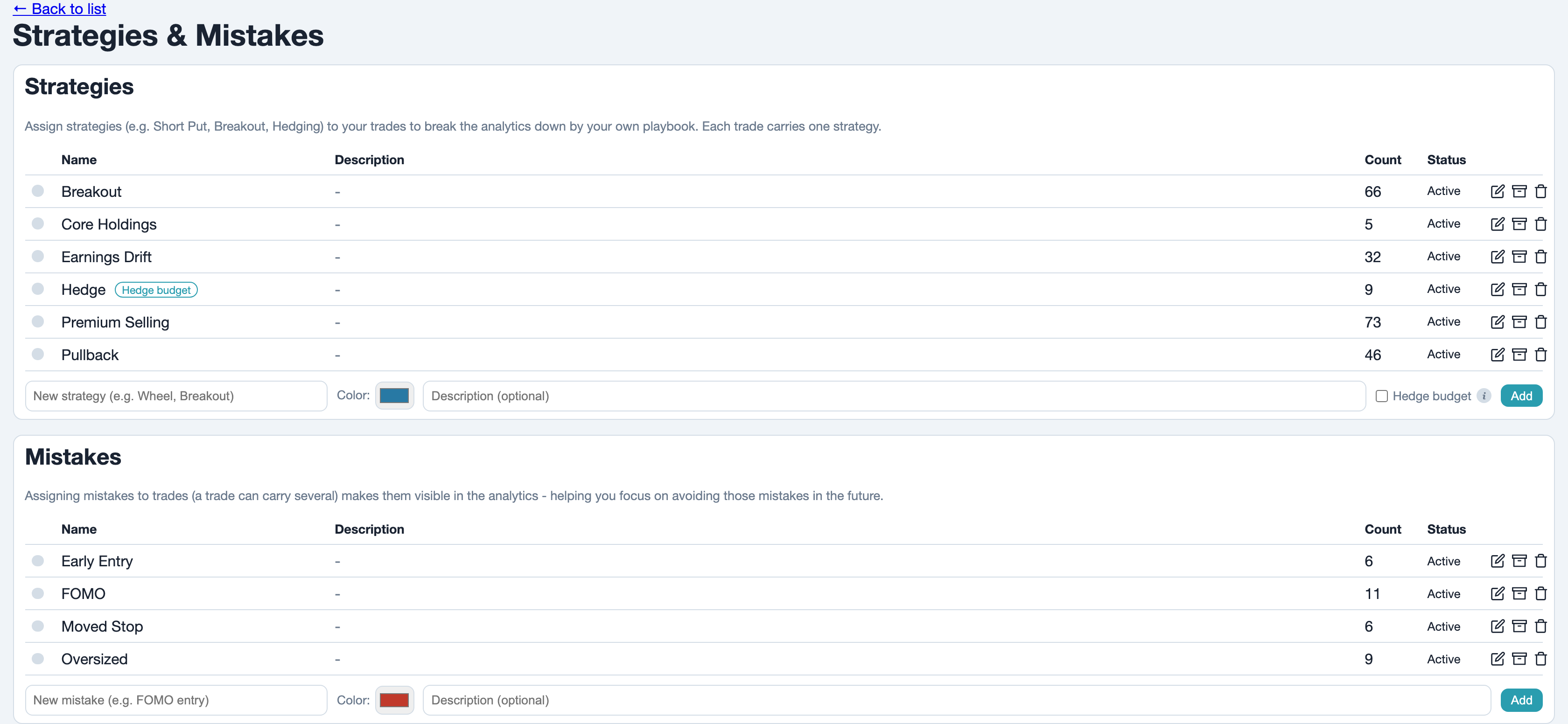
The Hedge budget checkbox marks a strategy as a hedge. The Hedge Budget panel in Analytics counts the premium paid when its option trades were opened, not the current value of the position. Leave the checkbox off for every other strategy.
Assigning
There are two ways:
| Way | Where | Note on the mistake |
|---|---|---|
| A single trade | Trade page, Mistakes field with + | yes |
| Several trades | Journal list, checkboxes and Assign | no |
A single trade
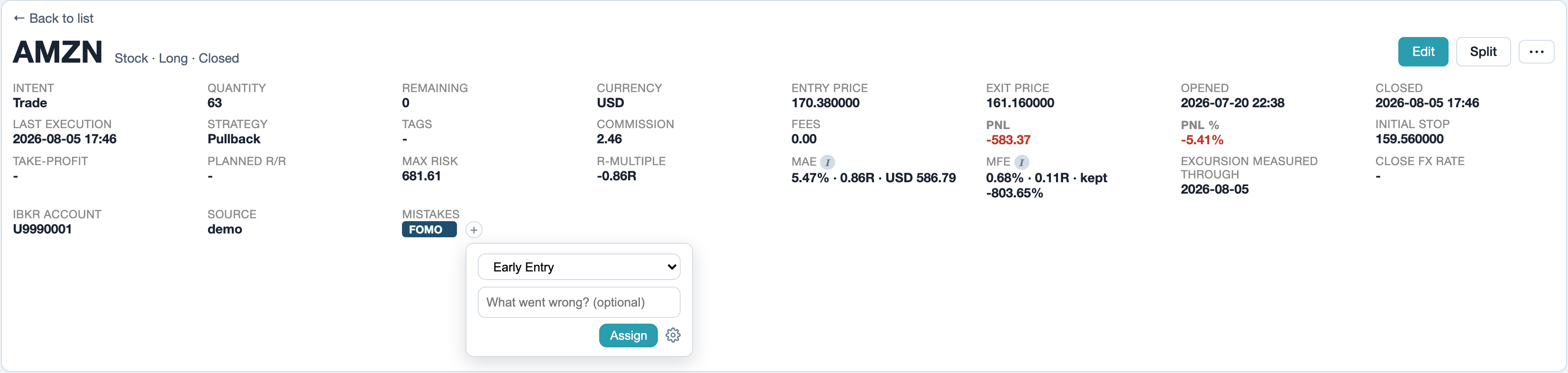
The eye icon in a row of a journal list opens the trade page. The overview at its top has the Mistakes field. The + opens a dropdown with every active mistake and a What went wrong? (optional) box for a short note. Strategy, tags and intent are changed via Edit. The strategy field suggests your strategies as you type.
Several trades at once
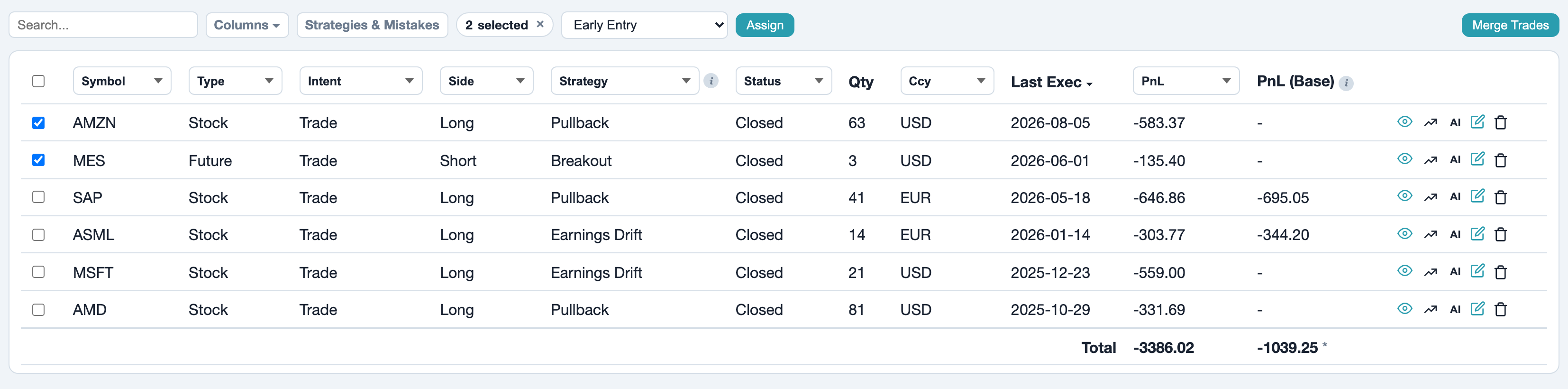
Tick the checkboxes of the trades in a journal list. A bar appears above the table with the number of selected trades and the Choose strategy/mistake... dropdown. Pick an entry and click Assign. A note on the mistake cannot be entered here, add it on the trade page if needed. The Mistakes column is shown via Columns and has its own filter in the header row. How columns and filters work is described under Customizing tables.
Trade or investment
Every stock and futures trade has an Intent: Trade for a short-term position with entry, stop and exit, Investment for a long-term holding. Analytics evaluates the two separately, so you can clearly tell trades and investments apart. In Foliograph options always count as trades.
Intent differs from two similar fields:
| Field | Question | Set by |
|---|---|---|
| Intent | What role does the position play in the portfolio? | you |
| Strategy | Which of your playbooks does the trade follow? | you |
| Option Strategy | How is the position built (Short Put, Iron Condor ...)? | Foliograph, from the legs |
Recording the plan
Via Edit you enter the Initial Stop and the Take-Profit (your planned exit at a profit). For stocks and futures Foliograph checks on saving that both sit on the right side of the entry: for long the stop below and the take-profit above, for short the other way round. From these Foliograph computes:
- Planned R/R (reward-to-risk ratio) before the trade: the possible gain up to the take-profit divided by the risk down to the initial stop, meaning the distance between take-profit and entry divided by the distance between entry and stop. This works the same for long and short trades. A ratio of 3 means one unit of risk for three units of possible gain.
- R-Multiple after the trade: the realized profit or loss after commissions divided by the initial risk, meaning the distance between entry and initial stop times the quantity, for futures also times the contract multiplier. The initial risk stays fixed even when you trail the stop later. +2.00R means twice the risk earned, -1.00R a loss of exactly the planned risk.
The R-multiple exists for stocks and futures with an initial stop. Foliograph computes none for options because your planned risk cannot be read reliably from the option structure. Even a defined maximum loss, for example on a spread, need not match the risk you planned. For stocks MAE and MFE add how far the price moved against you and in your favour between entry and exit, measured on the daily highs and lows.
Notes and screenshots
The Notes & Screenshots section of the trade page collects everything in one timeline. The switch above the input picks what you add:
- Note: text, for example why you entered or what you saw at the exit.
- Image: a file or a screenshot pasted straight in with Cmd+V or Ctrl+V.
- Link: a TradingView link. In TradingView click the camera icon and Copy link, then paste it here. The chart image appears in the timeline.
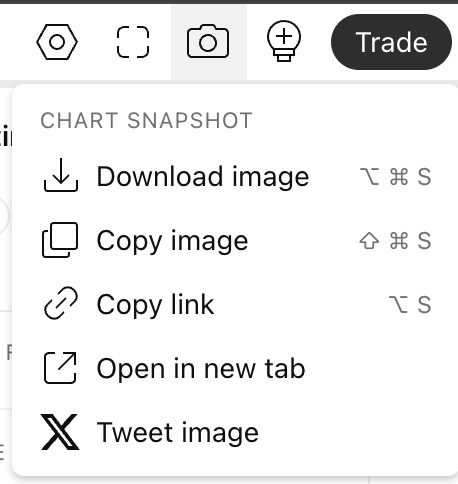
Every entry can be edited or deleted later with the pencil and trash icons. The files are stored locally with your data and are part of the backup.
The market environment
For every execution Foliograph stores a market snapshot, shown in the Executions table: the VIX, the VIX/VIX3M ratio plus Daily > EMA21 and Weekly > EMA21, meaning how many of 13 equity indices were above their 21-period EMA. Foliograph uses the latest stored daily values up to the day of the fill, so depending on when the fill was imported that is the close of the previous day or of the fill day. Later you can see in which environment a trade was made. Option fills add the underlying price, the distance to the strike, delta and IV.
The chart
The Price Chart on the trade page shows the underlying with moving averages, your entries and exits and the lines for stop and take-profit. For options the strikes of every leg and the expiry are drawn in. In the journal list, the chart icon of each row opens the same chart without leaving the list.
For stocks and stock options an orange E above the candle marks the past earnings. The date is the day the company filed its quarterly results with the SEC (form 8-K, item 2.02). After a release past the close the price reaction therefore sits on the next candle. Foliograph shows no future dates, because there is no reliable source free to use for them. Companies without SEC filings (outside the US) and futures carry no marker.
Asking the AI
The AI Analysis section of the trade page sends a summary of the trade to an AI model of your choice or copies the prompt to the clipboard. Setup and the data sent are described under AI analysis.
Reviewing in Analytics
The Analytics page filters at the top by account, category (all, stocks & futures or options), strategy and date range. Every change recomputes all sections.
Mistake Review
As soon as a closed trade in the filter carries a mistake, the Mistake Review appears:
- Trades with mistakes and Trades without mistakes side by side: count, win rate, total and average. The gap between the averages shows how the result per trade differs with and without recorded mistakes.
- By Mistake: one row per mistake, sorted by the total result, the lowest first. A trade with several mistakes appears in each of these rows, so the row totals cannot be added up.
- Per Month: how many closed trades per month carried at least one mistake.
- Mistake x Strategy: which mistake occurs in which strategy.
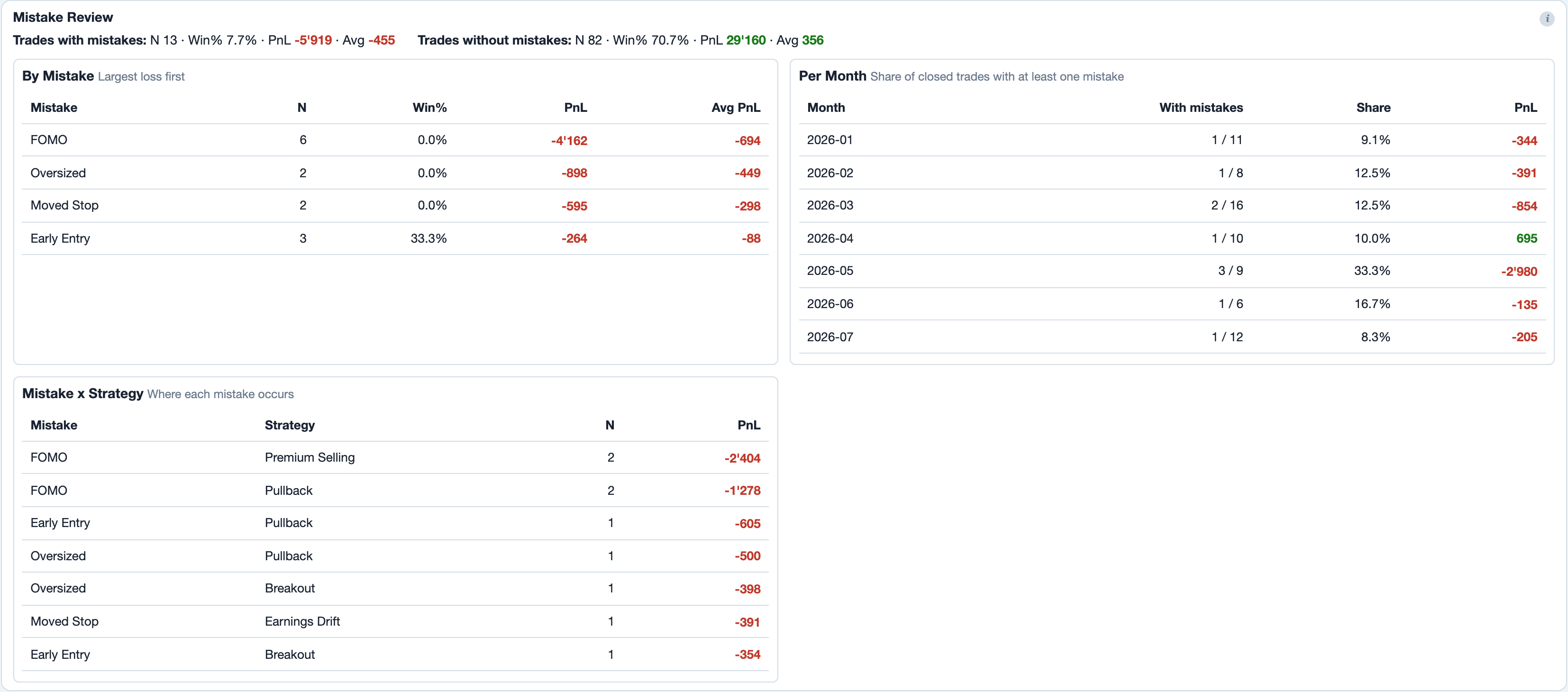
The review shows relationships in your past trades. It cannot prove that a mistake caused a difference: market phase, strategy, position size or underlying can play a part as well.
By Strategy
The By Strategy table sums up your trades per strategy: count, winners, win rate, profit and loss plus profit factor.
The trades behind a number
Every row of the tables By Strategy, By Symbol, By Option Strategy, Monthly, By Weekday and By Duration is clickable. A click filters the whole page to those trades. Below, a Trades panel lists exactly the matching trades, each symbol links to the trade page. You can combine rows from several tables, a second click on an active row removes its filter.
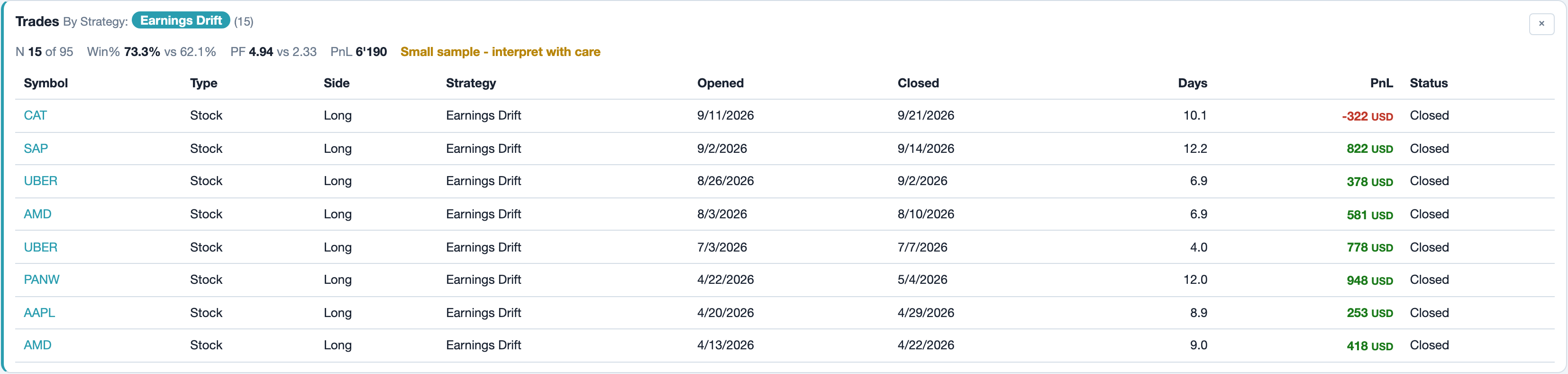
As a hint at a small sample, rows with fewer than 20 trades are dimmed. The limit is a rule of thumb, not a statistical test. The Trades panel sets count, win rate and profit factor of the selection against those of all trades in the filter. This shows whether a striking figure rests on only a few trades.
A possible routine
How often you review is up to you. A routine that Foliograph supports:
- After every trade: check the strategy, assign mistakes, add a note or a screenshot of the exit.
- Every week: show the Mistakes column in the journal list and fill in trades without a strategy.
- Every month: look at the Mistake Review and By Strategy in Analytics and click through to the trades behind rows that stand out.
If a trade is missing an execution or two positions are mixed up, fix that first as described under Fixing trades. Otherwise the breakdowns are off.
Related
This page is also in the app under Help, in the language of the interface. Question not answered? Write to info@foliograph.ch or use the contact form.