At a glance
What: All trade tables in Foliograph work the same way: choose columns, filter in the header row, sort and search.
Where: Stocks & Futures Journal, Options Journal, the list under Portfolio > Positions and the Expiring Soon panel on the dashboard.
Saved: The column selection applies per table and survives a restart. Since version 0.3.21 it is also part of the backup. The journal also remembers the filters you set last.
Choosing columns
The Columns button above the table opens a list of every column available for this table. Tick or untick the boxes and click Apply. Reset to default restores the original selection.
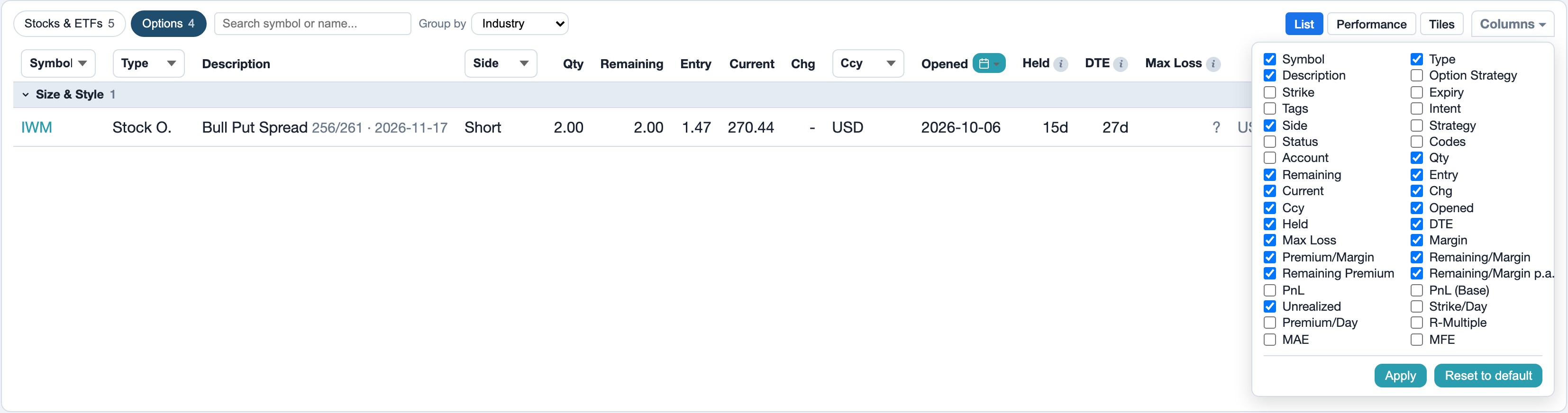
Each table remembers its own selection. Showing the Tags column in the Options Journal leaves the Stocks & Futures Journal unchanged. Some columns are off by default and only appear via this list, for example:
| Column | Available in | Content |
|---|---|---|
| Account | all tables | IBKR account number of the trade |
| Codes | all tables | IBKR codes of the executions (O = opening, C = closing, A = assignment and so on) |
| Closed | journal | Date the trade was closed |
| Mistakes | journal | Mistakes assigned from Strategies & Mistakes |
| Strike/Day (called Roll Eff. up to version 0.3.20) | options | Strike difference per additional day of runtime for rolled positions |
| Premium/Day (new in version 0.3.21) | options | Net roll premium per additional day of runtime for rolled positions |
| R-Multiple, MAE, MFE | stocks & futures | Result relative to the risk, largest open loss and largest open gain while the trade was held |
| Margin, Premium/Margin | portfolio and journal | Values from the margin measurement per trade |
Filtering in the header row
The filters sit directly in the table's header row. There are three kinds:
- Dropdown with an arrow ▾ (for example Symbol, Type, Side, Strategy, Status, Ccy, PnL): With no value chosen the field shows the column name. Pick a value and the table reloads. Choosing the column name again removes the filter.
- Codes: A menu with every IBKR code and its count. Clicking a code cycles between off, include (+) and exclude (-). That way you find all trades with an assignment (+A) or hide expired positions (-Ep). Apply takes over the selection.
- Date range in the Opened column (calendar icon): Set only the from date for all trades from a day on, only the to date for all trades up to a day or both for a period.
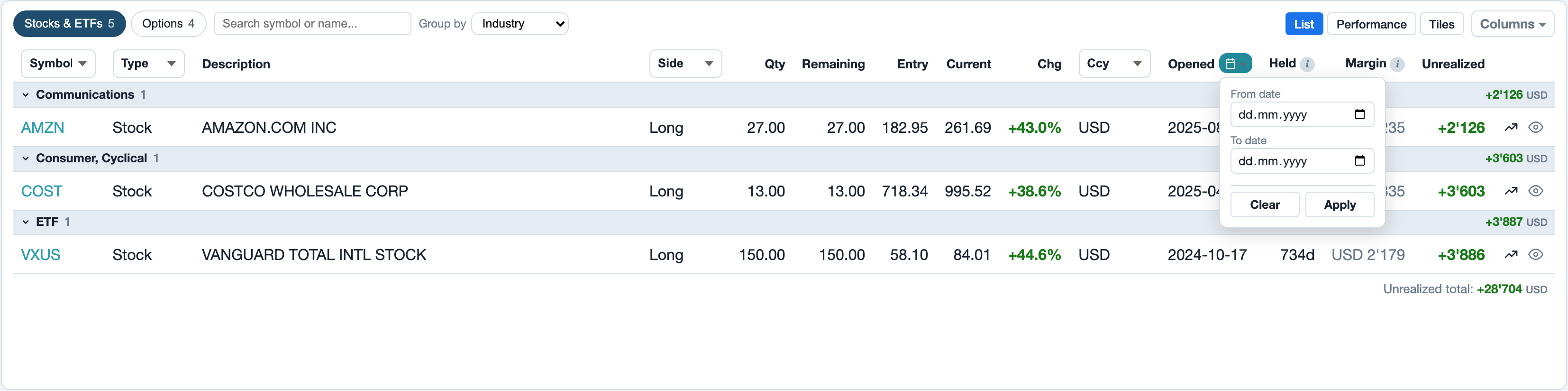
Filters work together
In the journal every filter you set narrows the choices of the others. Pick an account and the Symbol field only lists symbols traded in that account. Then pick status Open and only the symbols with open trades remain. A few clicks lead to a short list and you never see a value that leads to no result.
If you hide a column that has a filter set, the filter keeps working but is no longer visible. Reset it first.
Accounts
With several IBKR accounts an account selector appears above the table (up to four accounts as tabs, more as a dropdown). All shows the trades of every account.
Sorting
Columns whose title is a link sort on click, a second click reverses the direction. An arrow after the title shows the active sort (▾ descending, ▴ ascending). In the journal date columns start with the newest entry and DTE with the nearest expiry. Columns with a filter in the header row are operated through the filter and do not sort.
In the journal the database sorts, so across all pages. In the portfolio all open positions are on one page.
Searching
The Search... field in the journal searches symbol, strategy, tags, notes and account number. Press Enter to start the search. It combines with every filter, for example a word from a note together with status Closed.
Paging and coming back
- The journal shows 50 trades per page. The arrows below the table page through them, filters and sorting stay set.
- When you open a trade from a filtered list, Back to list on the trade page returns to the same list.
- Both journals remember the filters and sorting you set last, also after a restart. Once you remove all filters the list stays unfiltered until you set new ones.
Dashboard: Expiring Soon
The Expiring Soon panel on the dashboard uses the same columns as the Options Journal. By default it shows Symbol, Strike, Qty, DTE and the open premium. Its own Columns button adds more, such as Expiry, Option Strategy or Tags. It has no filters or sorting.
Related
This page is also in the app under Help, in the language of the interface. Question not answered? Write to info@foliograph.ch or use the contact form.