At a glance
What: A trade in the journal collects all executions of one position. Foliograph usually groups them correctly, but in some cases an execution ends up in the wrong trade.
Tools: Split divides a trade, Merge Trades respectively Merge Into One Trade combines several, Reprocess re-detects strategy and tags of an option trade.
Undo: A split can be undone with a merge and vice versa.
Before: Make a backup before larger fixes.
How executions become trades
Every execution Foliograph receives from TWS, the Flex Web Service or a CSV import is assigned to a trade. Foliograph first looks for an open trade with the same contract (via the IBKR contract ID). If there is none, it looks for an open trade with the same symbol, account and asset type. For options it also compares expiry, strike and right, because CSV and TWS sometimes write the same symbol differently.
- Combo orders: All legs of a combo order (a spread or a roll, for example) belong to one trade. Foliograph recognizes them by the shared IBKR execution ID.
- Duplicates: When the same execution arrives from two sources (first via TWS and later in the Flex activity report or a CSV file, for example), Foliograph recognizes it and imports it only once.
- Status: Open, Partial and Closed follow from the remaining quantity. After every fix Foliograph recalculates status and P&L.
Spotting a wrongly grouped trade
Typical cases are two separate spreads in one trade or a closing execution in the wrong trade. On the trade page, check in this order:
- Codes column in the executions: O means opening, C means closing. If a closing execution has no matching opening one in the same trade, the grouping is wrong.
- Exec ID: When the first two groups of the ID match for two executions (such as 0000f126.6aa937ad), they come from the same combo order.
- Timestamps: Executions at exactly the same time are usually one multi-leg combo order.
Then fix it with Split on the trade page or with a merge in the list.
Splitting a trade
- Open the trade and click Split at the top right. The button only appears for trades with more than one execution.
- A checkbox appears in front of every row of the Executions table. Select the executions that should move to a new trade.
- Click Split Selected. At least one execution has to stay in the original trade.

Foliograph then opens the new trade. Both trades are fully recalculated: P&L, status, option strategy and, for options, the legs. Cancel leaves split mode without changes.
Merging trades
Merge several trades when one position is spread across several rows, for example because two CSV files each contain part of a roll or because you opened a strategy leg by leg on different days.
- Tick the checkbox in front of every trade that belongs together. A bar with the number of selected trades appears above the table.
- In the Stocks & Futures journal click Merge Trades. In the Options journal the button is called Merge Into One Trade.
- Confirm the prompt.
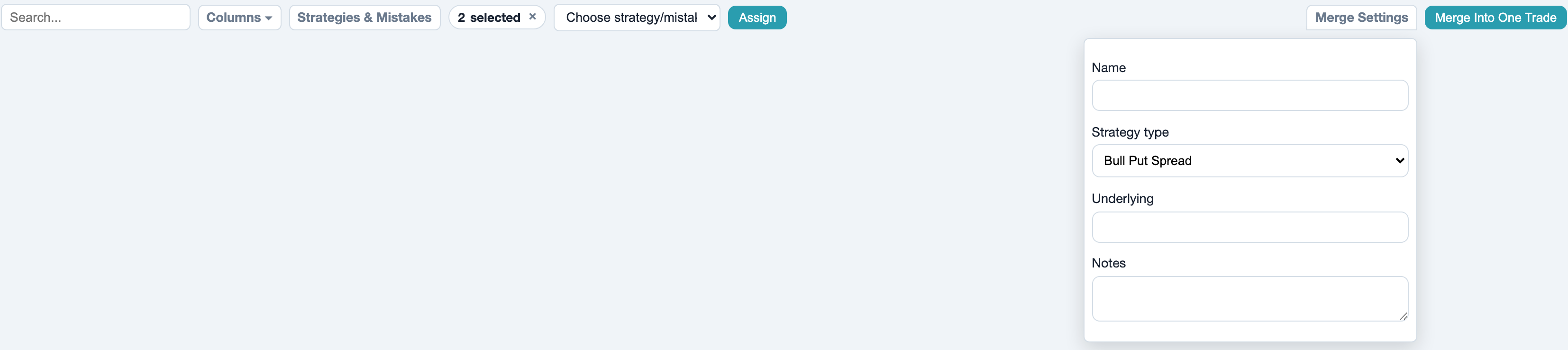
The oldest trade remains and takes over all executions, comments and attachments of the others. In the Options journal the legs are combined too, duplicate legs (same strike, expiry and right) are kept once. Under Merge Settings you can optionally set a name, a strategy type, the underlying and notes for the merged trade.
Reprocess
For option trades the ⋯ menu (More actions) at the top right contains Reprocess. It re-detects the option strategy, sets the tags for assignment, expiry, exercise and roll and links a covered option to the matching stock position. For closed trades it also fetches a missing exchange rate for the base currency.

This is useful after an update that detects new strategy types or when a covering stock position reached the journal after the option.
Corporate actions
Foliograph applies stock splits, option splits and renames from the Corporate Actions section of an IBKR statement (CSV) to open trades:
| Event | What Foliograph adjusts |
|---|---|
| Stock split | Quantity and entry price of the open stock trade, for example ORLY 15:1 |
| Option split | Legs, strikes and symbol of the open option trade, for example APH 2:1 turns a 125 put into a 62.5 put |
| Rename | New symbol after a reverse split, for example SQQQ to SQQQ2, so later executions find the same trade |
Every adjustment leaves an entry under Notes & Screenshots of the trade with the date, the ratio and the values before and after the adjustment.
Pausing automatic sync
While you fix several trades by hand you can turn off Automatic trade sync on the Trade Sync page or in Settings. TWS sync and Flex queries then no longer run on their schedule. Sync Now and the Flex buttons keep working. Turn the switch back on afterwards.
Foliograph does not overwrite your fixes on the next sync: executions it already imported are recognized as duplicates. Combo orders are the exception: when the legs of a newly imported roll land in two different trades, Foliograph merges them automatically and notes this in a comment. More under Options in the journal.
Make a backup first
Split and merge undo each other, but the notes and strategies of a deleted trade cannot be restored. Before larger fixes create a backup under Settings > Data & Backup. How that works is described under Backup and restore.
If you get stuck
If a trade cannot be fixed cleanly, choose Submit for support in the ⋯ menu on the trade page. The page shows exactly the data that would be sent (trade, executions, legs, comments and the latest activity log entries). Your account number is shortened to its last four digits. Nothing leaves your computer before you send the email yourself.
Related
This page is also in the app under Help, in the language of the interface. Question not answered? Write to info@foliograph.ch or use the contact form.