At a glance
What: Foliograph is a program for macOS and Windows that turns your Interactive Brokers (IBKR) trades into a journal, a portfolio view and analytics.
How: Install it, create your account and the setup wizard then takes you through the IBKR connection in eight steps.
Time: About 20 minutes, most of it in the IBKR portal for the Flex Queries.
Trial: 30 days with every feature, no payment details needed.
Installing
macOS
- Download the DMG file from foliograph.ch and double-click it.
- Drag Foliograph onto the Applications folder in the window.
- Start Foliograph from the Applications folder. The app is notarized by Apple. On the first start macOS only asks whether you want to open an app downloaded from the internet.
Windows
- Download the installer (
Foliograph-...-win-x64-setup.exe) and run it. - Choose the language, confirm the install location and optionally add a desktop shortcut. At the end Foliograph starts right away.
For new programs Windows sometimes shows the blue window Windows protected your PC. The installer is digitally signed, but Microsoft only trusts a new certificate after a certain number of downloads. Click More info and then Run anyway. You can check the file's signature beforehand under Properties > Digital Signatures.
The first start
- License agreement: On the very first start the license agreement (EULA) appears. Foliograph only starts once you accept it.
- Create your account: Foliograph opens in its own window with the sign-in page. Use Register to create your account: username, password, base currency and language. The email address is optional. This account exists only on your computer, it is not an online account. After the first account registration is closed.
- Trial: The 30 days start automatically. A yellow bar at the top shows the days remaining, next to it Manage license leads to activation.
All data stays on your computer:
| System | Data directory |
|---|---|
| macOS | ~/Library/Application Support/Foliograph/ |
| Windows | %LOCALAPPDATA%\Foliograph\Foliograph\ |
This is where the database, the automatic backups and the logs live. What Foliograph sends to the internet is described under Security and privacy.
The setup wizard
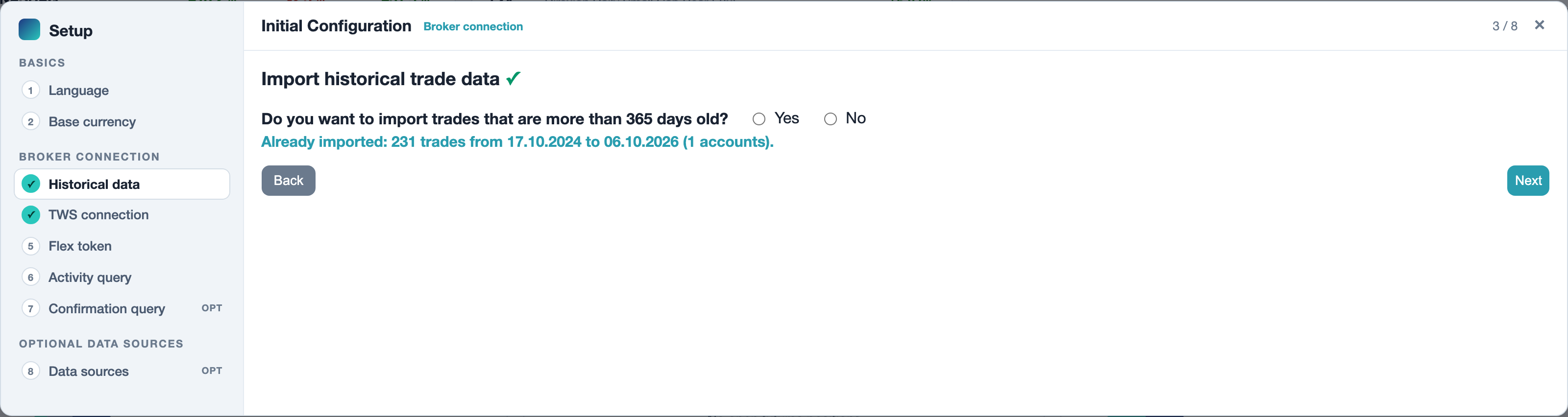
After registering, the Initial Configuration opens. The steps are listed on the left in three groups, a check mark shows what is already done. You can close the wizard at any time and reopen it later via Help > Open setup wizard.
Basics
-
Language: English or German. You can switch any time with the language menu at the right end of the Foliograph top bar, next to the light and dark switch.

-
Base currency: Foliograph converts the profit and loss of all accounts into this currency. It is fixed after the setup so earlier conversions stay consistent. Choose it carefully before the first import. The same step asks for your tax domicile (Switzerland / Liechtenstein or another country). It decides which license checkout you are offered and can be changed under Settings > General.
Broker connection
- Historical data: The Flex Web Service delivers the trades of the last 365 days. If you need older trades, enter the start date and the wizard lists the account statements to download. Guide: Importing historical trades via CSV.
- TWS connection: Enable the API in the Trader Workstation so Foliograph can read prices, executions and account values. Guide: Setting up the TWS API.
- Flex token, 6. Activity query and 7. Confirmation query (optional): With these Foliograph fetches new trades directly from IBKR, even when TWS is not running. The confirmation query brings in today's trades within 5 to 10 minutes instead of the next day. Guide: IBKR Flex Web Service.
Optional data sources
- Data sources: Free API keys for FRED (macro data and yield curve), massive.com (backup price data when TWS has none), EIA, USDA and FAS (commodity fundamentals). None of them is needed to start, you can add them later under Settings.
Finish completes the wizard.
What is still missing
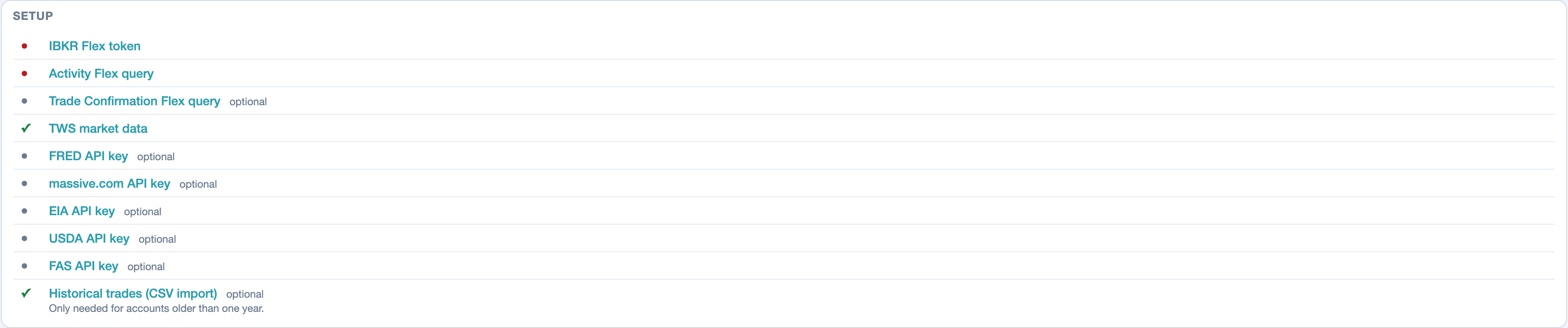
As long as a required step is open, the dashboard shows the Setup card at the top. A red dot marks what is still missing, a check mark what is done. Every row leads straight to the matching setting. Once all required steps are done the card disappears.
A first tour
Once the first trades are imported, these areas are worth a look (menu at the top):
- Stocks & Futures and Options: the journal. Each row is a trade with all its executions. Foliograph recognizes multi-leg options as a strategy (spread, iron condor and so on). The available columns and filters are described under Customizing tables.
- Portfolio: open positions with current prices, margin reserve, sold option premium and the bound capital, see Portfolio.
- Analytics: key figures, equity curve and breakdowns by strategy, symbol or weekday.
- Market: indices, volatility, ETF heatmap, futures and macro data. The data comes from TWS and refreshes every 10 minutes while it runs.
- Trade Sync: status of the imports and the switch for automatic sync.
Updates
Foliograph checks for a new version once an hour. When one is available a blue Update available bar appears at the top with a What's new? link. Download and verify downloads the file and checks that it is genuine. Then you install it on macOS with Install and restart and on Windows with Run installer. Your data is left untouched.
Buying and activating a license
Under Manage license you can buy a license at any time. Payment opens in your browser and the license key arrives by email. Paste it into the License Key field and click Activate. When the trial ends, Foliograph shows a page with the same options instead of the other areas. Your data is kept, even if you activate the license later. Before moving to a new computer see Moving to a new computer.
Related
This page is also in the app under Help, in the language of the interface. Question not answered? Write to info@foliograph.ch or use the contact form.