At a glance
What: The Portfolio shows everything that is open: stocks, ETFs, futures and options with status Open or Partial.
Where: Menu Portfolio. The key figures sit at the top, below them the tabs Positions, Premiums & risk and Allocation.
Remembers: Tab, view, chips and grouping stay as they were on your next visit and are part of the address too, so a link leads to exactly this view.
Key figures
The first line starts with the account selector. Next to it:
- NLV: the Net Liquidation Value from the newest TWS account snapshot. The tooltip gives the age of the value.
- Unrealized: the open profit or loss, split by currency.
- Margin reserve: the Excess Liquidity from TWS. The tooltip shows its share of the NLV, which IBKR calls the cushion. The figure only appears while TWS is connected.
- Sold Option Premiums: the premium of the open short options in your base currency, amber from 3% and red from 5% of the NLV.
- Max Loss: the sum of the maximum losses at expiry of all open options with limited risk. Next to it is the number of positions without an upper loss bound. A click opens the Premiums & risk tab.

The button with the two arrows on the right of the tab row fetches the current prices of every held symbol through TWS.
Positions
All open positions are in one list.
- Chips: Stocks & ETFs, Futures and Options show and hide the classes. At least one chip stays on. A chip without positions does not appear.
- Option columns: DTE, Max Loss, Premium/Margin, Remaining/Margin, Remaining Premium and Remaining/Margin p.a. only appear while the Options chip is the only one on. For stocks these columns would be empty.
- Description: the name for stocks and ETFs, strategy, strikes and expiry for options.
- Held: the days since opening, for every position.
- DTE (days to expiration): the days to the next expiry of the open legs. Stocks and futures have no remaining runtime in the list.
- Search: filters by symbol, name and underlying, in all three views.
- Columns: the button on the right shows and hides columns, see Table columns.
Below the list is the open profit or loss of all visible rows, split by currency.
Grouping
Group by applies to List, Performance and Tiles alike:
| Grouping | What stands together |
|---|---|
| Underlying | a stock with its options, e.g. GLD with a short call and a bull put spread |
| Industry | stocks by industry, ETFs by category, options with the industry of their underlying |
| Asset class | Stocks & ETFs, futures and options |
| Account | the positions of each account |
| Strategy | the strategy you gave the trade |
Each group shows the number of positions and the open profit or loss per currency. A click on the arrow collapses it. Underlying and asset class only exist in the list, because Performance and Tiles show stocks and ETFs only.

The industry comes from the IBKR contract details. ETFs outside the heatmap list stand under ETF. Foliograph recognizes them by the IBKR stock type or, until it arrives with the next price load, by name parts such as ETF, UCITS or iShares. Futures have no industry.
Performance and Tiles
Performance shows your stocks and ETFs with the columns of the ETF heatmap: return since entry and over periods from 1 day to 3 years, EMA21 daily and weekly plus the distance to the 52-week high. Tiles shows the same positions as areas. The size follows the position value, the colour the return over the chosen period.
- The menu left of List picks the period for the colours, the default is Since entry.
- In the Performance view Columns shows and hides whole groups or single columns, as in the heatmap. 2w, 3w, 6m, 2Y and 3Y start hidden. The choice is stored for your user.
- A click on a row or tile opens the chart with your entries, exits and the open profit or loss.
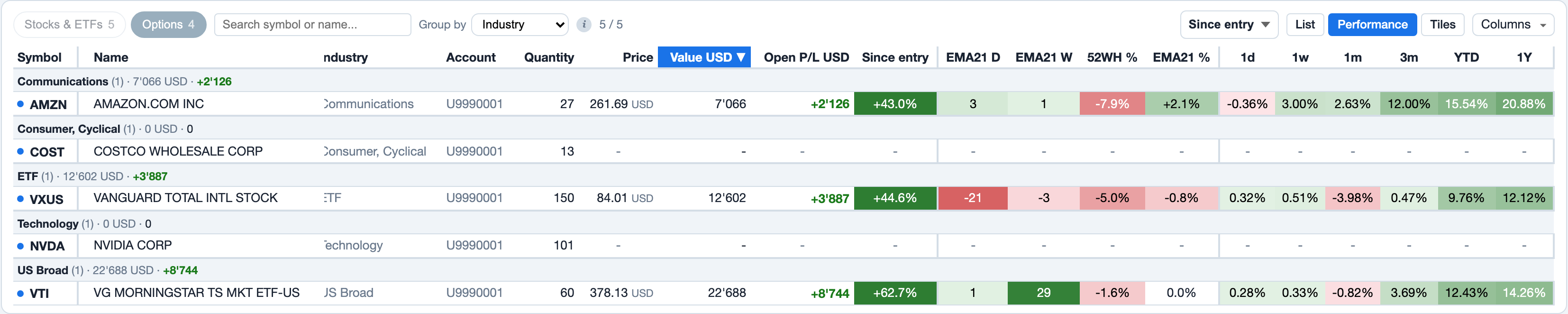
When the price history of a symbol is missing, Foliograph loads it in the background (TWS, else massive.com). The toolbar then shows Loading N symbols... and the table updates by itself.
Premiums & risk
This tab collects the figures on sold options:
- Sold Option Premiums by category (stock, index, futures, commodity ETF and volatility ETF options) with bars per underlying and the capital a full assignment of the short puts would take.
- Notes when trades reach your own thresholds, see Margin per trade.
- Max Loss per trade at expiry, split into the down and the up side. Positions without an upper loss bound are marked unlimited, covered options are listed separately.
Allocation
The allocation shows how much capital your open positions bind, in the currency of the NLV and in percent of the NLV. The shares appear as bars by asset class, currency, industry and account.

Each position counts with the capital it binds:
| Class | Basis | Without a margin measurement |
|---|---|---|
| Stocks and ETFs | market value (quantity x current price) | - |
| Options | newest measured margin | max loss at expiry |
| Futures | newest measured margin | notional value (price x contract multiplier) |
- A covered option adds nothing, because its stock already counts with the market value.
- An option without an upper loss bound and without a measured margin is not counted. It is listed with a link below the bars.
- Below the bars is also how many options and futures entered with a measured margin, with the max loss or with the notional value.
- The shares can add up to more than 100%. That happens when you use margin, i.e. more capital is bound than the NLV.
- Without an NLV the shares relate to the total.
Foliograph measures the margin per trade only when you have switched on the margin measurement. Without it options count with their max loss, which for short puts is the assignment value minus the premium and usually well above the margin.
Related
This page is also in the app under Help, in the language of the interface. Question not answered? Write to info@foliograph.ch or use the contact form.